.webp)

With BakkesMod no longer compatible with Rocket League after the Easy Anti-Cheat update, the auto-upload plugin most DataCoach users relied on stopped working. The DataCoach desktop app replaces that workflow entirely.
This guide walks you through setup from start to finish. If you want to understand why BakkesMod stopped working, read the full EAC explainer here. If you just want to get your replays uploading again, follow the steps below.
Setup Guide
Step 1
Go to Your DataCoach Dashboard
Log in to DataCoach and go to your dashboard. If you do not have an account yet, you can sign up free with no credit card required.
Once you are on the dashboard, find the "Upload Replay" button in the top-left corner. It is the teal button labelled "Upload Replay" in the top-left.
Step 2
Open the Upload Modal and Select "Automatic"
After clicking the Upload Replay button. A modal will appear with two tabs at the top: "Manual" and"Automatic".
Select the "Automatic"tab. This is where you will find the download link for the DataCoach AutoReplay Uploader and the token generation you need to connect it to your account. Upload Replay modal with the Automatic tab now selected. Shows the download link for the RLDataCoach Auto Replay Uploader, the step-by-step instructions, and the Generate Token button at the bottom.

Step 3
Download the DataCoach Auto Replay Uploader
On the Automatic tab, click the"RLDataCoach Auto Replay Uploader" download link. This will download a small Windows application to your computer.
Once downloaded, open the installer and follow the standard Windows installation steps. The app is lightweight and installs quickly.
Why is this app safe?
The DataCoach Auto Replay Uploader is a desktop app that only reads files from your Rocket League replay folder. It does not interact with the game process, does not inject into Rocket League, and is completely EAC-compatible. It works the same way File Explorer does: it watches a folder on your hard drive.
Step 4
Set Your Replay Folder Path
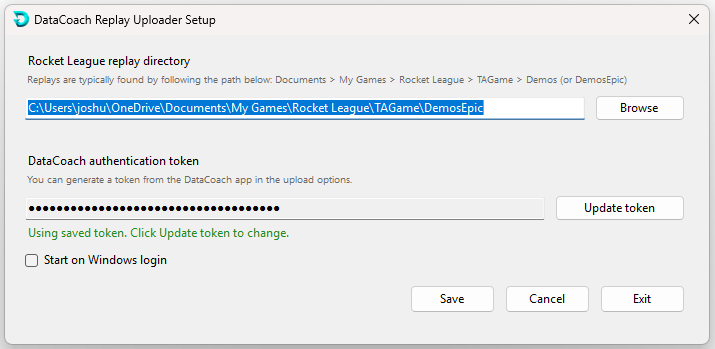
Open the DataCoach Auto Replay Uploader app. The first thing it will ask for is the path to your Rocket League replay folder.
Your replay folder is where RocketLeague saves .replay files after every match. The path depends on how you installed the game:
• Steam install: Steam: Documents > My Games > Rocket League >TAGame > Demos
• Epic Games install: Epic Games: Documents > My Games > Rocket League> TAGame > DemosEpic
Not sure which path to use?
Open File Explorer and navigate to Documents > My Games > Rocket League > TAGame. You will see either a "Demos" folder (Steam) or a "DemosEpic" folder (Epic Games). Paste the full path to whichever folder exists on your machine into the app.
Copy the correct folder path and paste it into the replay folder field in the app. You can also click Browse to navigate to the folder directly.
Step 4
The DataCoach Auto Replay Uploader app open on the setup screen, with the replay folder path field visible. Ideally shows a path already entered.
Step 5
Generate Your Token and Connect Your Account
The app needs a token to link itself to your DataCoach account. This is a one-time step.
Back in the DataCoach UploadReplay modal (Automatic tab), click the "Generate Token" button. A unique token will be created for your account.
1. Click "GenerateToken" in the DataCoach modal
2. Copy the token that appears
3. Switch to the Auto ReplayUploader app
4. Paste the token into the token field
5. Click "ValidateToken"
6. A confirmation message will appear when the connection is successful
Step 6
Enable Auto-Start and Save
Once your token is validated, you have one recommended setting to enable before saving: "Start on Windows login."
Turning this on means the DataCoach uploader will start automatically whenever you start your computer. This keeps your replay uploads running in the background without you needing to remember to open the app before each session.
• Check the "Start on Windows login" option
• Click "Save" to finish setup

Step 7 (after every match)
Save your replays
After each match, click "save your replay" and the replay will be placed in the folder that is read by our automatic uploader.
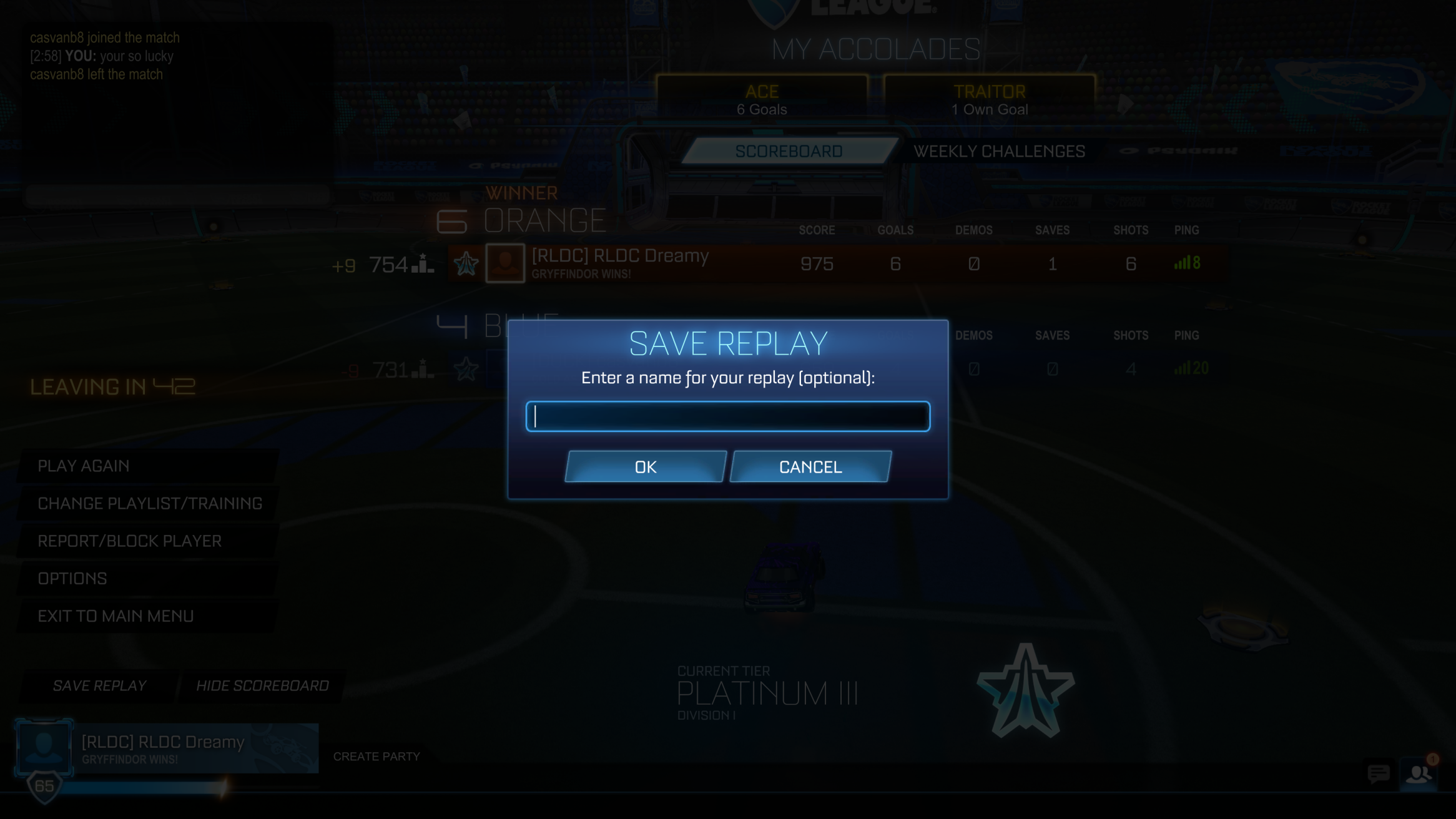
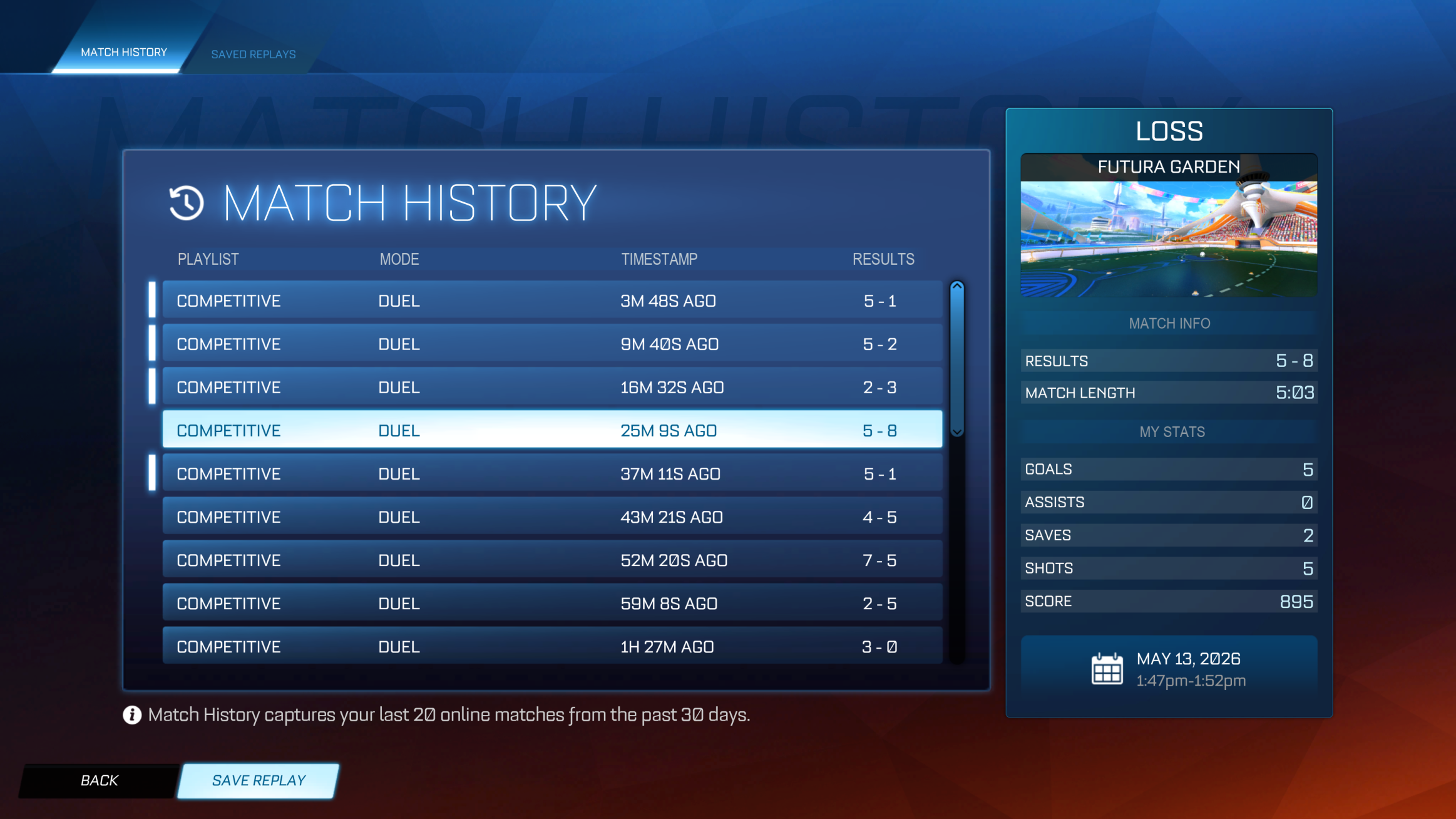
Or save from your profile like this:
And as always, if you have any questions or troubles, please join our discord for help.